
Member Details Tab Overview - Action Log
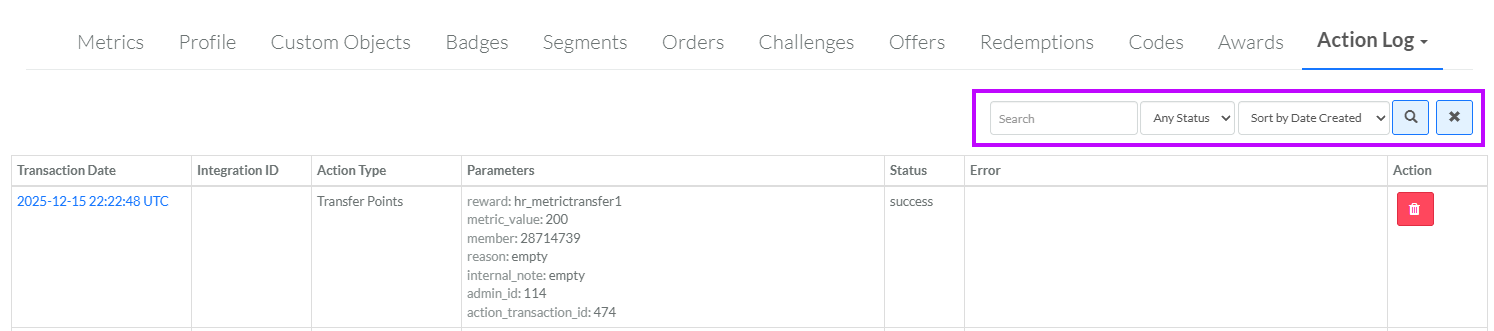
Triggered Actions are a type of Rule within the Loyalty platform, used to monitor changes to a Member Profile, and to execute a specific action if a specific condition is satisfied. The action specifies what the platform should do, such as triggering the deployment of an email message, changing the value of a Member Attribute, or adding a punch to a Punch Card. The Action Log tab of the Member Details screen displays all the Triggered Action executions related to the currently selected Member.
To search for a Triggered Action execution on the Member Details screen:
-
Select Members from the top navigation bar, then select Members > Members from the side navigation menu. The Members screen is displayed.
-
On the Members screen, search for and select the desired Member (see Search for a Member for more information). The Member Details screen is displayed with the Metrics tab selected by default.
-
Select the Action Log tab.
-
Optionally, in the Search field, enter the desired text string.
-
Optionally, from the Status drop-down menu, select an action status: Queued, Success, or Failed. The default is Any Status.
-
Click the Search icon. The screen is refreshed to show only the Triggered Actions that meet your search criteria. If you entered multiple search criteria, the Triggered Action must meet ALL criteria.
-
To sort the search results, select the desired sort order from the Sort By drop-down menu. The default sort order is by: Created Date.
-
Optionally, to remove all search criteria and revert to the default criteria, click the Clear icon.
For additional details, click the Transaction Date. The Trigger Log Details screen is displayed.
From this tab, you can delete a Triggered Action execution. For details on this process, see Delete a Triggered Action Execution.
From this tab, you can also resubmit a failed Triggered Action execution. For details on this process, see Resubmit a Triggered Action Execution.
